Time-Lapse Video Template
The Time-Lapse Video Template turns one still photo into a day-to-night time-lapse lasting 8 seconds: the scene stays put while late-afternoon light turns golden, clouds race past, lights switch on and stars come out. You upload a photo of a city skyline, a mountain or a quiet street; it runs on Veo 3.1 in 16:9 with sound and costs 13 credits (about $0.69). The sky and lights are generated, not filmed. Use it on YouTube, in a Reel or as a website header.
Updated 2026-10-29 · Kensa team
Example made with this template
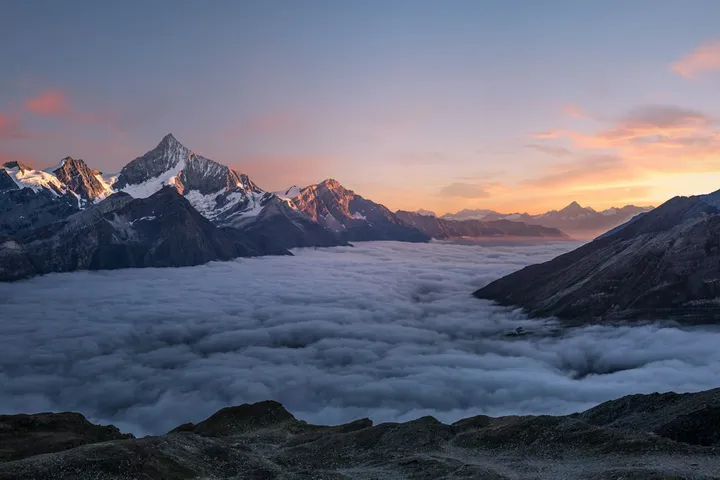
Input photo
Which photo works best?
Use a sharp daytime or late-afternoon photo taken from one fixed spot, with plenty of sky in the frame: a city skyline, a mountain view or a quiet street. Horizontal photos fit the 16:9 frame best. Leave people out of the photo: the video models reject photos of real people.
How do I use the Time-Lapse Video Template?
- 1
Open the template
Click “Use this template”. The image-to-video page opens with the time-lapse prompt, model, length and 16:9 frame already filled in.
- 2
Upload a daytime photo
Add one photo of your scene. The layout of the shot comes from it; the model changes the light, the sky and the lights, not the buildings or the hills.
- 3
Change the time of day if you like
The prompt runs from late afternoon into a starry night. Reverse it for a sunrise, or replace the stars with a full moon or a storm rolling in.
- 4
Generate and download
Generate the clip, check that the scene kept its shape as the light changed, then download the MP4.
How can I make it my own?
- Pick a photo where the sky fills at least a third of the frame. The sky carries most of the change, so a tight shot of a wall gives the model little to animate.
- Say what lights the scene has (office towers, a harbor, a cabin on the hillside) so the model knows where to switch lights on after sunset.
- Keep the camera locked. The effect works because nothing moves except time; a pan or a zoom makes it look like an ordinary clip.
- The full day-to-night change in 8 seconds is fast. For a calmer clip, ask for golden hour to dusk only and leave out the stars.
What prompt does this template use?
This is the prompt filled into the generator. Edit it freely before you generate.
Locked-off camera on a tripod, no camera movement at all. Keep the layout of the scene from the photo exactly as it is while time speeds up: late-afternoon light turns into warm golden hour, the sun sets, clouds race across the sky, the sky fades through deep blue into night, any windows and street lights in the scene switch on one by one, and stars fill the sky. Smooth, realistic day-to-night time-lapse. No text or logos. No people.
Frequently asked questions
Is this a real time-lapse of the place in my photo?
No. A real time-lapse is hundreds of photos taken over several hours; this is a generated clip that imagines how your scene would change. The clouds, sunset colors and stars are invented, so they won't match the real sky at that spot.
Will the buildings or mountains change shape?
The camera is locked and the prompt asks the model to keep the layout, so the main shapes usually hold. Small details such as windows, signs or trees can shift as the light changes. Check the clip and regenerate if something important moved.
Does the time-lapse come with sound?
Yes. Veo 3.1 generates audio with every clip. Time-lapses are often posted with music instead, so feel free to mute it and add your own track in your editor.
Can I make a vertical version for stories?
Yes. Switch the aspect ratio from 16:9 to 9:16 before you generate. A tall subject, such as a single tower or a waterfall, suits the vertical frame better than a wide skyline.
Related templates
- Earth Zoom Out Video TemplateFrom your photo straight up through the clouds to the whole planet, in vertical 9:16.
- New Year Video TemplateMidnight fireworks over a city skyline and a river, widescreen 16:9.
- Product Video TemplateYour product turning on a studio turntable, in widescreen 16:9 for listings.