Celebrities, children, brand logos and NSFW content aren't supported, and most models reject photos of real people (Seedance 2.0 accepts photos of adults you have permission to use). You're never charged for a rejection. Content Policy
Text to Video Examples
Every text to video clip below is a real Kensa output, compressed for the web but not edited. Each card lists the exact prompt, the model, the clip length and the credits it cost. To see the same two prompts run on every model side by side, open the AI video model benchmark.
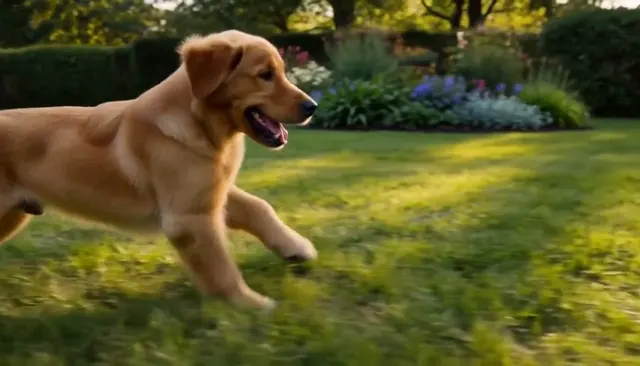
Puppy chasing bubbles
MiniMax H3 · 8 s · 768P · 16:9 · 20 credits
Prompt: A golden retriever puppy chases soap bubbles across a sunlit backyard lawn, paws kicking up blades of grass, bubbles popping with soft sounds, low tracking camera alongside the puppy, warm afternoon light, cinematic.
What we saw: Fastest and highest resolution; the most natural running motion, but it mostly ignores the bubbles.
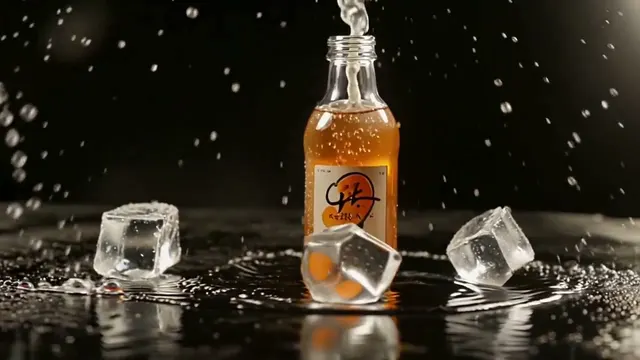
Orange soda product shot
Seedance 1.5 Pro · 8 s · 720P · 16:9 · 32 credits
Prompt: A glass bottle of sparkling orange soda stands on a wet black stone slab, ice cubes tumble around it in slow motion and droplets splash outward, studio lighting with a warm rim light, macro lens, premium commercial style.
What we saw: Most ad-like composition with fizz bursting from the neck — but it invents a brand-style label you would need to remove.
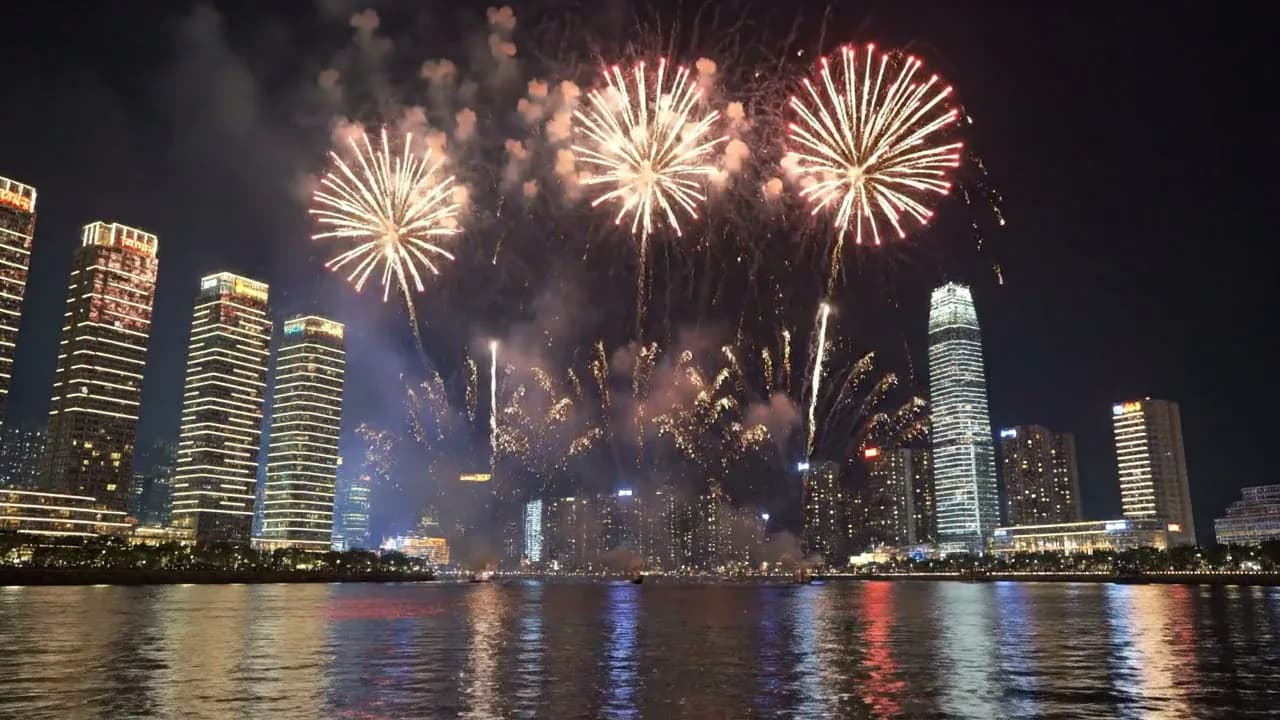
New Year fireworks over a city
Veo 3.1 · 8 s · 16:9 · 13 credits
Prompt: Fireworks burst over a modern city skyline at midnight on New Year's Eve. Gold, red and silver shells bloom high above the glowing towers and fall in shimmering trails, and their colors reflect on a calm river in the foreground. The camera starts low near the water and makes one slow crane-up to reveal the full skyline and sky. Sound: crackling fireworks and deep booms echoing across the water. Cinematic night shot with rich colors and light haze. No people, no text, no brand names or logos on the buildings.
How to Turn Text Into Video in 3 Steps
Making a clip with this text to video tool takes three steps, and you see the price before you spend any credits.
- 1
Write a prompt
Describe one shot: the subject, what it does, where the camera is and how the scene is lit. A single clear shot works better than a list of scenes. Not sure where to start? Open one of the video templates and edit its prompt, or use the prompt tips further down this page.
- 2
Choose a model, length and aspect ratio
MiniMax H3 is selected by default. Pick another model from the list if you need a longer clip, a different resolution or a lower price, then set the length and aspect ratio: 16:9 for YouTube, 9:16 for TikTok, Reels and Shorts (the options depend on the model). The generator shows the credit cost for your settings before you start.
- 3
Generate, preview and download
Press Generate. The clip keeps rendering if you leave the page and shows up in your history when it's done. MiniMax H3 at 480P or 768P usually finishes in under a minute, while its 2K tier takes about 3 minutes for a 5-second clip. Download the MP4, or change one detail in the prompt and run it again. If a generation fails, its credits are returned.
Which Text to Video Model to Use
Each model on this text to video tool has its own clip lengths, resolutions, sound and price. The table shows what the generator offers today; credits run from the shortest clip at the lowest resolution to the longest clip at the highest. You can watch the same prompts on every model in the benchmark or compare specs on the models page.
| Model | Clip length | Resolution | Sound | Credits per clip | Good for |
|---|---|---|---|---|---|
| MiniMax H3 | 5–15 s | 480P, 768P, 2K (paid plans) | Always included | 8–60 | Fast drafts with sound; the default model |
| Grok Image Video | 6 or 10 s | 480P, 720P | No sound setting | 5–15 | The cheapest way to test many variations |
| Veo 3.1 | 8 s | 720P | Always included | 13 | Short hooks and prompt tests at one fixed price |
| Seedance 1.5 Pro | 4–12 s | 480P, 720P, 1080P (paid plans) | On by default, can be turned off | 8–96 | Ad-style shots and ultrawide 21:9 |
| Seedance 2.5 | 4–30 s | 480P, 720P, 1080P (paid plans) | On by default, can be turned off | 42–1,659 | Long scenes and the longest single clips |
Resolutions marked “paid plans” need a paid plan; the free credits for eligible Google sign-ups cover the others. Sound never changes the price. Kling 3 is under maintenance on Kensa right now.
Text to Video Prompt Tips
Models follow concrete details better than adjectives. A strong text to video prompt covers four things, usually in one or two sentences:
- Subject
- Who or what is on screen, with a detail or two: “a golden retriever puppy” rather than “a dog”, “a glass bottle of orange soda” rather than “a drink”.
- Action
- What happens during the clip. One main action per shot keeps the motion clean; several actions in a short clip tend to blur together.
- Camera
- Shot size and movement: close-up, wide shot, slow push-in, tracking shot, crane up, or a locked-off camera that doesn't move.
- Light
- Time of day, light source and mood: warm afternoon sun, a studio rim light, neon at night, soft overcast light.
Weak vs. stronger prompts
Weak: “A dog playing outside.”
Stronger: “A golden retriever puppy chases soap bubbles across a sunlit backyard lawn, low tracking camera alongside the puppy, warm afternoon light.”
Adds what the dog looks like, one clear action, a camera move and the light.
Weak: “Cool drink ad.”
Stronger: “A glass bottle of orange soda on a wet black stone slab, ice cubes tumbling around it in slow motion, warm rim light, macro lens. No text or logos.”
Names the setting and materials so the model doesn't have to guess, and rules out invented labels, which models sometimes add to product shots.
Weak: “Epic fireworks, cinematic, ultra HD.”
Stronger: “Fireworks burst over a city skyline at midnight, colors reflecting on a calm river; the camera starts low near the water and cranes up slowly. Sound: crackling fireworks and deep booms.”
Swaps buzzwords for what happens, how the camera moves and what you should hear. Models that generate sound pick up the sound line.
Celebrities, children, brand logos and NSFW content aren't supported, and you're never charged when a prompt is rejected. For more depth, read how to write Veo 3.1 prompts and our advanced prompting techniques.
What You Can Make with Text to Video
Text to video is at its best for short clips that would be slow or expensive to film:
Ads and product hooks
Write the product, the setting and one camera move, generate a few short variations and keep the one that holds attention. Running paid ads needs commercial rights, which come with Pro, Ultimate or the Premium pack. More ideas are on the AI marketing videos page.
Vertical clips for social media
Pick 9:16 for TikTok, Instagram Reels and YouTube Shorts and keep each clip to one idea; short clips loop well. See AI videos for social media and how to reuse one idea across platforms.
Product showcases without a shoot
Describe the product, its material and the lighting to get a studio-style shot. If you already have a product photo, image to video keeps your real product in the frame instead of an invented one. Ready-made prompts are in the video templates, and more formats are on the e-commerce product videos page.
Explainers and lessons
Turn an idea into a short visual, such as a process, a historical scene or a science concept, to drop into a lesson or a presentation. See AI video for education.
Why Use Kensa for Text to Video
- Simply describe what you want to see
- Veo 3.1, Grok Image Video, Seedance 1.5 Pro, MiniMax H3 and Seedance 2.5 in one place
- Cinematic quality up to 1080p, plus 2K with MiniMax H3 on paid plans
- Generate audio and sound effects automatically
- Multiple aspect ratios for any platform
How Much Does Text to Video Cost
Kensa charges credits per text to video clip, and the generator shows the exact cost before you press Generate. On this page the cheapest option is a 6-second 480P Grok Image Video clip at 5 credits and the most expensive is a 30-second 1080P Seedance 2.5 clip at 1,659 credits. A Veo 3.1 clip (13 credits) always costs the same, because Veo makes one fixed length. Per-second models scale with length and resolution: a 5-second 768P MiniMax H3 clip is 13 credits. Turning sound on or off doesn't change the price, and if a generation fails, its credits go back to your balance.
Eligible new accounts that sign up with Google get 15 free credits, valid for 72 hours, with no credit card. That covers one 8-second Veo 3.1 clip (13 credits), one 5-second 768P MiniMax H3 clip (13 credits) or three 6-second 480P Grok Image Video clips (5 credits each). Accounts created with an email link don't get free credits. 1080P and 2K need a paid plan.
After that, you can buy credits once or subscribe. Credit packs start at $14.90 for 280 credits, about $0.69 per Veo 3.1 clip, and pack credits stay valid for 365 days. Subscriptions start at $9.90 a month for 280 credits, which last 30 days. Every plan and pack is on the pricing page.